
On this page:
- Enhanced case access
- Requesting enhanced case access
- Viewing the case page
- Access for departing staff members
If a court file’s proceeding number contains an ‘E’ (referring to ‘Electronic’), then parties may access the court file in RedCrest. This is called enhanced case access.
If a court file’s proceeding number does not contain an ‘E’, this is a paper file and online access is not available.
If you are not a party to a proceeding, or if you are a party wanting to inspect a paper file, please see searching court records and obtaining copies of documents.
You do not need enhanced case access to file documents in a proceeding. For information about how to file documents in RedCrest, see:
Enhanced Case Access
Civil proceedings
Enhanced case access will usually be automatically given to the Case Manager in civil proceedings. The Case Manager is the person whose details appear in the 'tram tacks' on the first document filed by each party in the proceeding.
Case Managers must first register for access to RedCrest. If the Case Manager is not registered for RedCrest, enhanced case access will instead be granted to the person filing the documents.
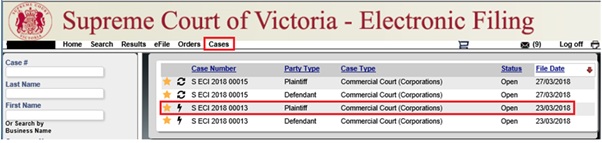
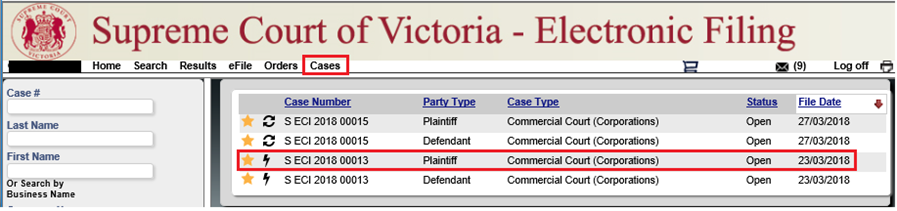
If you aren't sure whether you have enhanced case access for a proceeding, log in to RedCrest and click the Cases tab to display a list of cases. Cases with a lightning bolt symbol have enhanced case access.
Criminal Trial Division proceedings
Documents filed in a proceeding in the Criminal Trial Division are not open for inspection unless the Registrar allows it (rule 1A.03(6) of the Chapter VI Rules).
Criminal Court of Appeal proceedings
Documents filed in a criminal proceeding in the Court of Appeal are not available for inspection unless the Court of Appeal or the Registrar allows it (rule 1A.03(7) of the Chapter VI Rules).
On approval by the Court of Appeal team in the Registry, parties will be granted enhanced case access to view a limited number of documents through RedCrest.
Requesting Enhanced Case Access
If a party or their legal representative (other than the Case Manager) needs access to an electronic file of the proceeding, they must have a RedCrest account first and then request enhanced case access.
To request enhanced case access, contact the Court (copying in the Case Manager) at:
- pvivy@fhcpbheg.ivp.tbi.nhua.vog.civ.truocpus@livic if it relates to a civil Trial Division proceeding
- pbnertvfgel@fhcpbheg.ivp.tbi.nhua.vog.civ.truocpus@yrtsigeraoc if it relates to a Court of Appeal proceeding
and provide the relevant proceeding number/s.
If you are not a party or a legal representative for a party then you cannot be granted enhanced case access. Instead, see searching court records and obtaining copies of documents.
Viewing the Case Page
Once you have been granted enhanced case access to a court file, it will be added to your case list in RedCrest.
To view the case page:
1. From the Toolbar, click the Cases tab to display a list of cases. Cases with a lightning bolt symbol have enhanced case access. If there is no lightning bolt next to a proceeding, you should ask for enhanced case access (see instructions above).
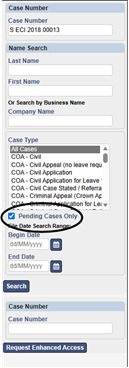
If the case you want access to has been finalised, you will need to ensure that the 'Pending Cases Only' tick box on the left of the screen is unchecked.
2. Click on the Case Number to open the case page. This will display the case details.
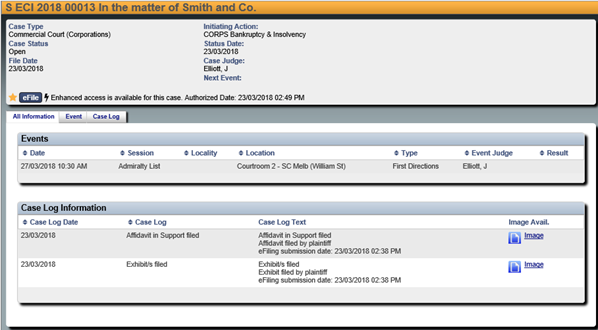
3. To view a document, click on the ‘image’ icon.
Access for departing staff members
- The Case Manager is responsible for ensuring only appropriate users have access to the case page. This includes updating access when legal practitioners leave a firm or new counsel is briefed.
- For law firms, we recommend that access to RedCrest be included in your HR policies, particularly your staff exit policy and procedures.
- In circumstances where the departing staff member is also a RedCrest Case Manager, you should file a notice of change of address for service with an updated email for the practitioner with carriage of the matter.
- In both instances the RedCrest Help Desk must be notified by email at erqperfg@fhcpbheg.ivp.tbi.nhua.vog.civ.truocpus@tsercder of the staff member’s departure so that their system account can also be deactivated.